
- What MCP is, in one paragraph
- Three ways to bring your data into an AI
- Which AI apps work
- Why cross-source matters
- Prompts to try first
- One automation: a morning brief that writes itself
- Safety, briefly
- FAQ
- Is there an official WHOOP or Oura MCP server?
- Do I need to install anything?
- Does it work with Gemini?
- Can the AI change my data?
- Can the AI read my lab results?
- Read next
TL;DR: VitalTrends runs a hosted MCP server at https://mcp.vitaltrends.net/mcp. Add it to your AI app once, paste your VitalTrends API key on the sign-in page, and the assistant can read your WHOOP, Oura, Withings, Apple Health, Hevy, glucose and Training Log data while you chat. It's read-only unless you turn on workout writes. We have tested it end to end in Claude, Claude Code, the Codex app, Grok on the web and ChatGPT on the web. The AI hub links every setup guide.
I built VitalTrends because my data lived in five apps that never talked to each other: WHOOP had my recovery, Hevy my lifts, the Withings scale my weight. AI assistants turned out to be the missing piece: once they can read all of it, you can ask the questions that actually matter, like whether heavy leg days wreck your sleep or why your HRV dipped last week. This post is the map for that setup.
What MCP is, in one paragraph
The Model Context Protocol (MCP) is an open standard that lets an AI app call tools on a server you've connected. Instead of you uploading a file, the assistant decides it needs "WHOOP daily data for the last 30 days", calls the matching VitalTrends tool, gets the numbers back and answers from them. The VitalTrends server has 44 tools: 30 that read data and 14 that can change your Training Log. Each tool is labeled so the AI app knows which ones only read and which ones write. The full list is in the MCP tool reference.
Three ways to bring your data into an AI
| Path | Best for | What you need |
|---|---|---|
| Connector (MCP) | Asking questions in chat, any day, about any date range | An AI app that supports custom MCP servers |
| REST API | Scripts, notebooks, dashboards, automation platforms | A tool that can send an Authorization header |
| CSV export | A one-off deep dive in any AI that accepts files | The Export page (unlocks once a trial converts to a paid subscription) |
All three use the same data. Most people want the connector, because it stays current and there are no files. The API is for code and automation platforms: see the REST API docs. CSV export works with any assistant that takes uploads.
All three need an active VitalTrends subscription, at least one synced data source and your API key from Settings → Developer.
Which AI apps work
Here is where things stand on 22 November 2026. "Tested" means we ran a real VitalTrends tool call in that app ourselves.
| AI app | Status | Guide |
|---|---|---|
| Claude (web, desktop, mobile) | Tested | Claude guide |
| Claude Code | Tested through connectors added on claude.ai | Developer tools |
| ChatGPT (web, developer mode) | Tested; menu labels may differ by plan | ChatGPT guide |
| OpenAI Codex app | Tested | Codex guide |
| Grok (grok.com) | Tested | Grok guide |
| Cursor, VS Code, Gemini CLI, Zed, LM Studio and other developer tools | Not yet tested by us; documented from each vendor's docs | Developer tools |
| Gemini, Perplexity, Le Chat, Copilot Studio, Poke and other assistants | Not yet tested by us; documented from each vendor's docs | Other assistants |
| n8n, Zapier, Make, Home Assistant, Apple Shortcuts, scripts | See the guide for each platform's status | Automations |
AI apps change their connector menus often, so the click-by-click steps live in the docs, where I keep them current. For untested apps, the guides say what the vendor documents and what we haven't confirmed. If your app doesn't support custom MCP servers, CSV export still works.
The connection flow is the same everywhere it works. You give the app the server URL, a "Connect VitalTrends" page opens, it names the app asking for access, and you paste your API key there. The AI app never sees your key, only a token tied to it. The connection renews itself, and you only sign in again if you stop using it for about six months.
Why cross-source matters
Many AI health integrations reach a single data source, or reach WHOOP and Oura only indirectly through Apple Health. That's fine for "how did I sleep?" It falls apart for the questions where the answer lives between apps:
- Your strength sessions are in Hevy, your recovery is in WHOOP, and your weight is on a Withings scale.
- You wear an Oura ring at night and an Apple Watch during the day.
- Your CGM writes to Apple Health, but you want to see glucose next to sleep.
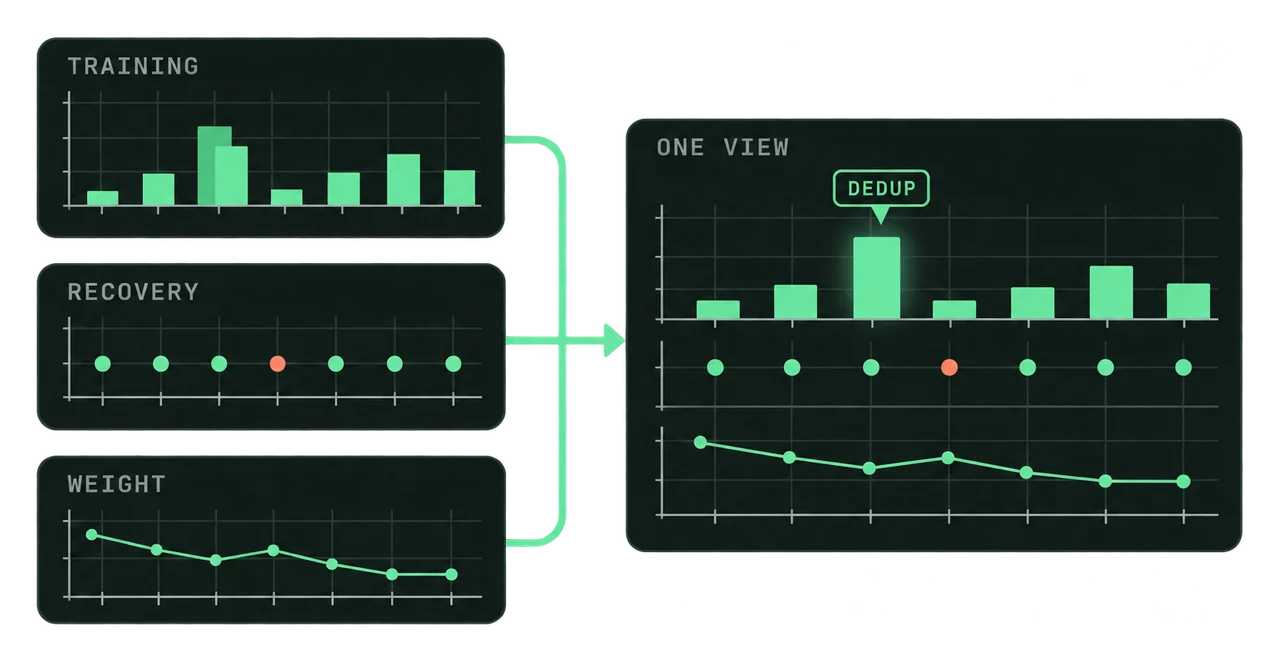
VitalTrends already pulls these into one account, deduplicates workouts recorded by more than one device, and keeps each source's metrics distinct (a WHOOP recovery score and an Oura readiness score are not the same thing). The connector exposes that combined view, including a cross-source get_summary tool, so the AI doesn't have to stitch it together from five exports.
What the AI can't see through the connector: lab reports, weekly recaps, billing, account settings and provider connection management. Your lab results stay in the website.
Prompts to try first
Start each prompt with "Use VitalTrends" so the assistant calls the connector.
- "Use VitalTrends to give me a five-line brief for today: recovery, sleep, anything unusual, and whether today looks like a hard or easy training day."
- "Compare my WHOOP HRV for the last 30 days with the 30 days before. Is the change bigger than my normal day-to-day variation?"
- "Use VitalTrends to show my Oura readiness and sleep score for the last 14 nights and point out the three lowest nights."
- "What's my Withings weight trend over the last 8 weeks? Use a 7-day average, not single weigh-ins."
- "From my Training Log, which muscle groups got the most volume in the last 4 weeks, and which got almost none?"
- "Use VitalTrends to check whether my recovery is lower the morning after strength sessions than after runs over the last 60 days."
- "Summarize my glucose time in range for the last 7 days and the evening with the highest average."
- "Find my lowest recovery day in the last 90 days and show what my strain, sleep and workouts looked like the day before."
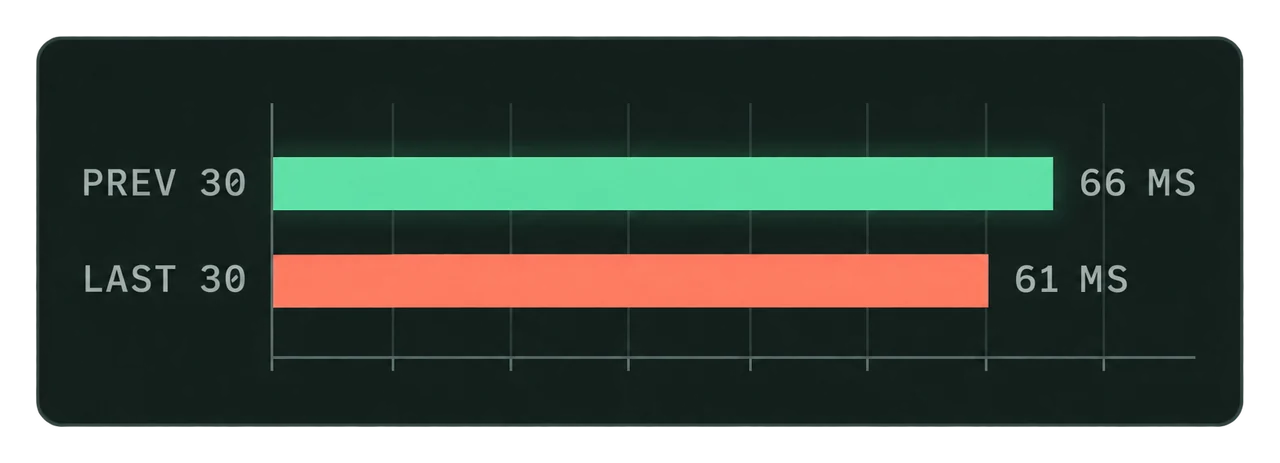
Here's the kind of answer prompt 2 produces. The numbers below are invented for illustration.
Sample output (synthetic data): Your average HRV over the last 30 days was 61 ms, compared with 66 ms in the previous 30 days, a drop of about 8%. Your day-to-day values usually swing between 52 and 74 ms, so this is a modest shift rather than an outlier. The lower readings cluster in the second week, which also had your three shortest nights (under 6 hours 20 minutes).
And prompt 5:
Sample output (synthetic data): Over the last 4 weeks, chest (18,400 kg) and back (16,900 kg) led your lifted volume. Quads had 4,100 kg across two sessions. Hamstrings and calves had no logged volume. If that's not intentional, one lower-body session a week would close most of the gap.
There are more in the prompt library, grouped by goal and data source.
One automation: a morning brief that writes itself
Once the connector works in chat, the next step is getting the answer without asking. Several AI apps can now run a saved prompt on a schedule: Grok has Automations, ChatGPT has scheduled tasks, and Claude has scheduled tasks and routines. Whether a scheduled run can use a custom connector depends on the app and your plan, and we haven't tested every combination yet, so check the automations guide for the current status.
A prompt that works well as a daily brief:
Use VitalTrends. Check whether today's WHOOP recovery is available.
If it isn't, say "Recovery not synced yet" and stop.
If it is, write a brief with:
1. Recovery, HRV and resting heart rate versus my 30-day average.
2. Last night's sleep duration and performance.
3. One line: push, maintain or take it easy, with the reason.
Keep it under 80 words. Don't give medical advice.
Schedule it about an hour after you usually wake up, so the night has time to sync. The automations guide also covers n8n, Zapier, Make and scripts that deliver to Telegram, Slack or email.
Safety, briefly
The connection is read-only by default. To let the AI create, edit or delete workouts, you have to tick "Allow changes to my Training Log" when you connect and turn on "Allow workout write access" for the API key. Revoking is one click: delete or regenerate the key in Settings → Developer, and every AI connection made with it stops working immediately.
Once the AI reads your data, that data is handled under the AI provider's privacy policy, not ours. The AI access and your data page covers what to check before you connect.
FAQ
Is there an official WHOOP or Oura MCP server?
Not that we know of as of November 2026. VitalTrends connects to WHOOP, Oura and Withings through their official APIs, then exposes your data through one MCP server, so you don't need a separate connector per device.
Do I need to install anything?
No. The server is hosted. You add a URL in your AI app and sign in. Developer tools that use config files need one config entry, covered in the developer tools guide.
Does it work with Gemini?
We haven't tested Gemini yet. The other assistants guide covers what Google documents for its products, and CSV export works with any assistant that accepts file uploads.
Can the AI change my data?
Only your Training Log, and only if you allow it in both places described above. It can't change anything in WHOOP, Oura, Withings or Hevy. Ask the AI to preview any write before it makes it.
Can the AI read my lab results?
No. Lab reports stay in the VitalTrends website and aren't exposed through the connector or the API.
Read next
This post is the hub for a short series:
- How to connect WHOOP to Grok and analyze your sleep stages
- A weekly Apple Health review with AI, without the XML export
- Your weekly training recap, written by AI
- 10 health automations that run while you sleep
- Is it safe to give AI access to your health data?