Connect WHOOP, Apple Health & Your Health Data to Codex
Add the hosted VitalTrends MCP server to the Codex app so Codex can read your WHOOP, Apple Health, Oura, Withings and Hevy data. Nothing to install: add one MCP server in Codex settings and sign in with your VitalTrends API key.
Using the Codex CLI or the IDE extension? See Codex CLI and IDE extension.
Prerequisites
- An active VitalTrends subscription
- At least one data source (WHOOP, Apple Health, Oura, Withings, Hevy...) connected and synced in Settings → Connections
- Your personal API key from Settings → Developer. Turn on Allow workout write access only if you want Codex to create or edit workouts.
- The Codex app on your computer. Menus may change between Codex releases.
Setup
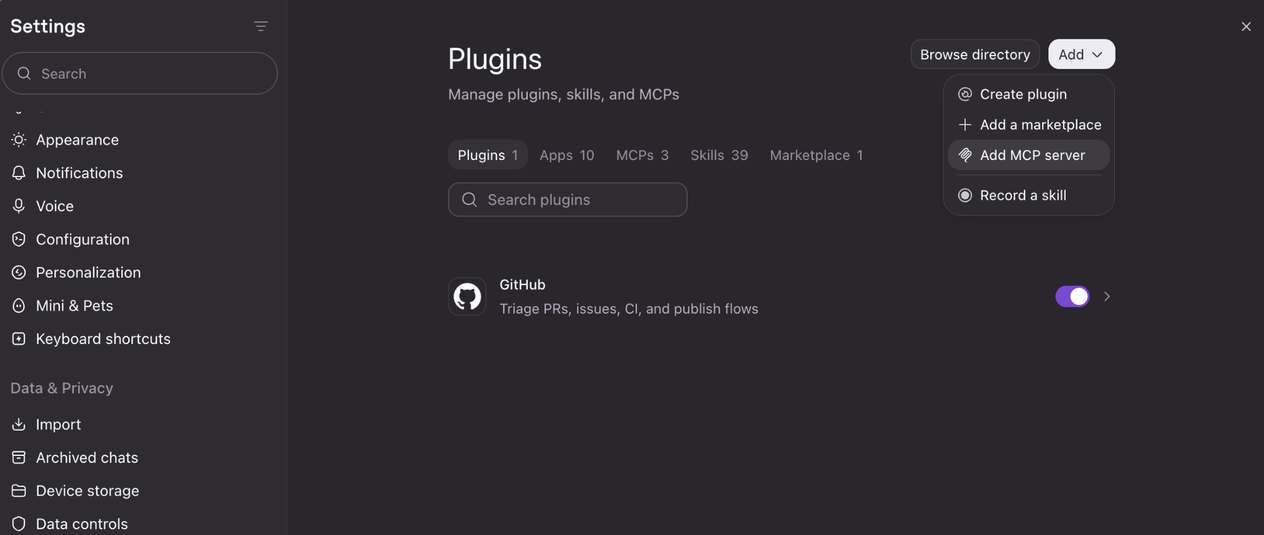
In Codex, open Settings → Plugins, select Add and choose Add MCP server.
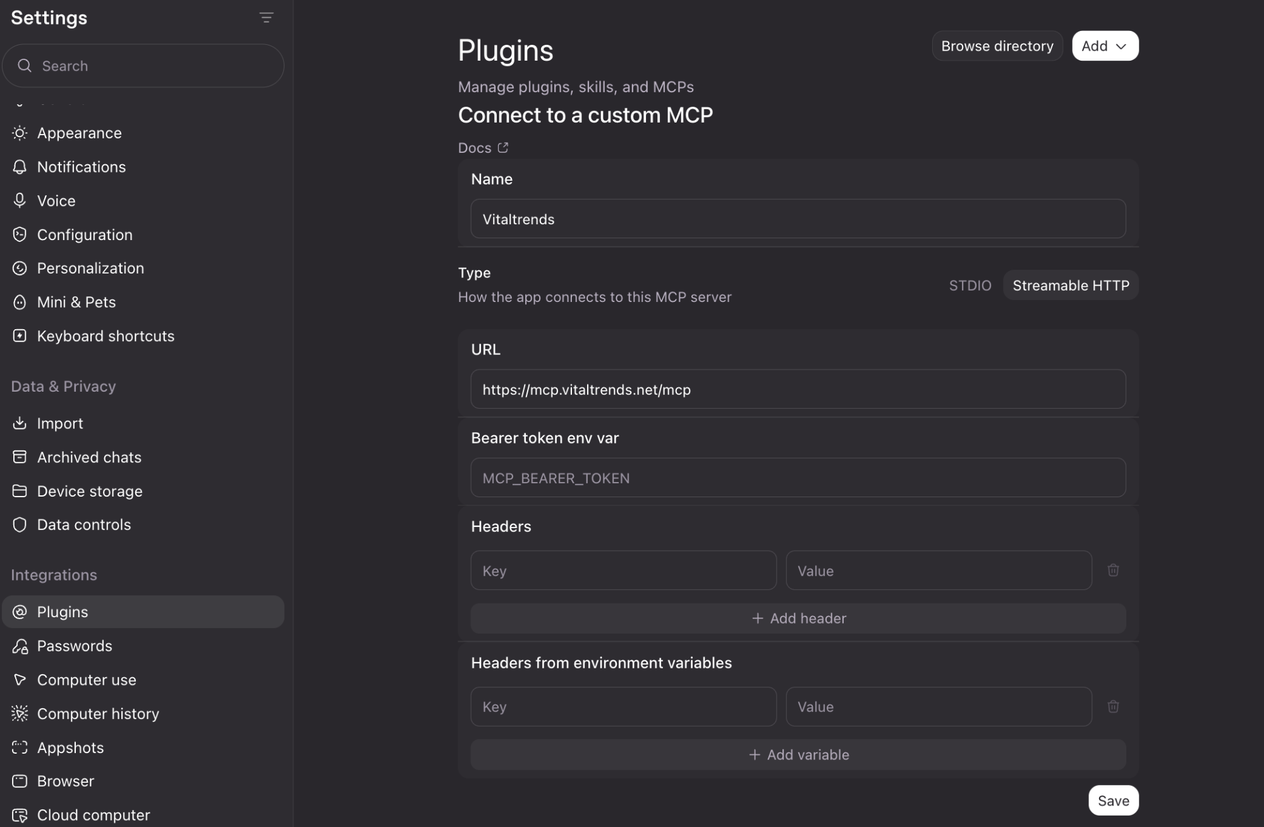
Under Connect to a custom MCP, enter VitalTrends as the name, choose Streamable HTTP and enter https://mcp.vitaltrends.net/mcp as the URL. Leave the bearer token, headers and environment variables empty: you sign in in the next step. Select Save.
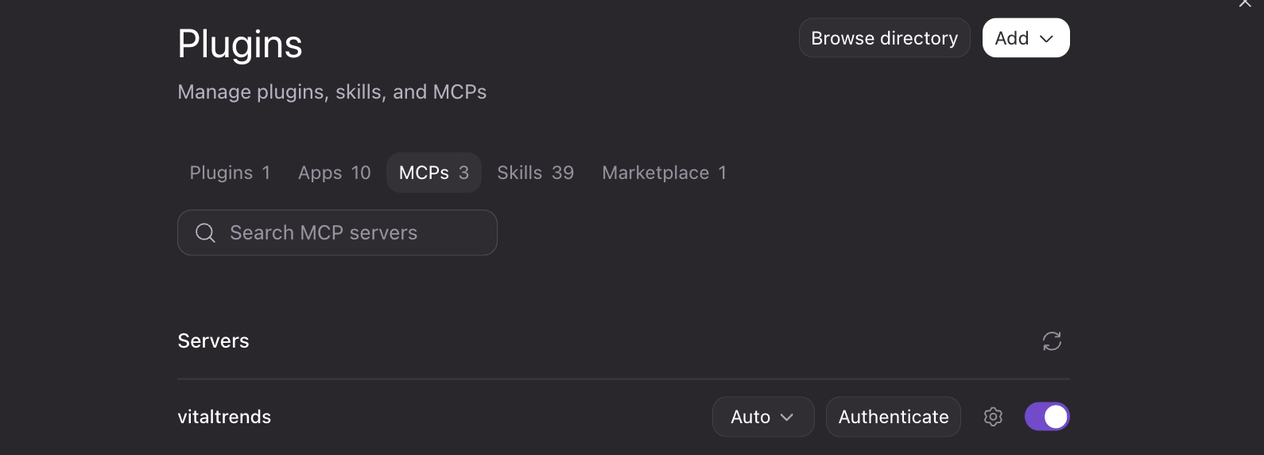
Open the MCPs tab. VitalTrends is listed under Servers. Make sure it is switched on, then select Authenticate. Codex opens the VitalTrends sign-in page in your browser.
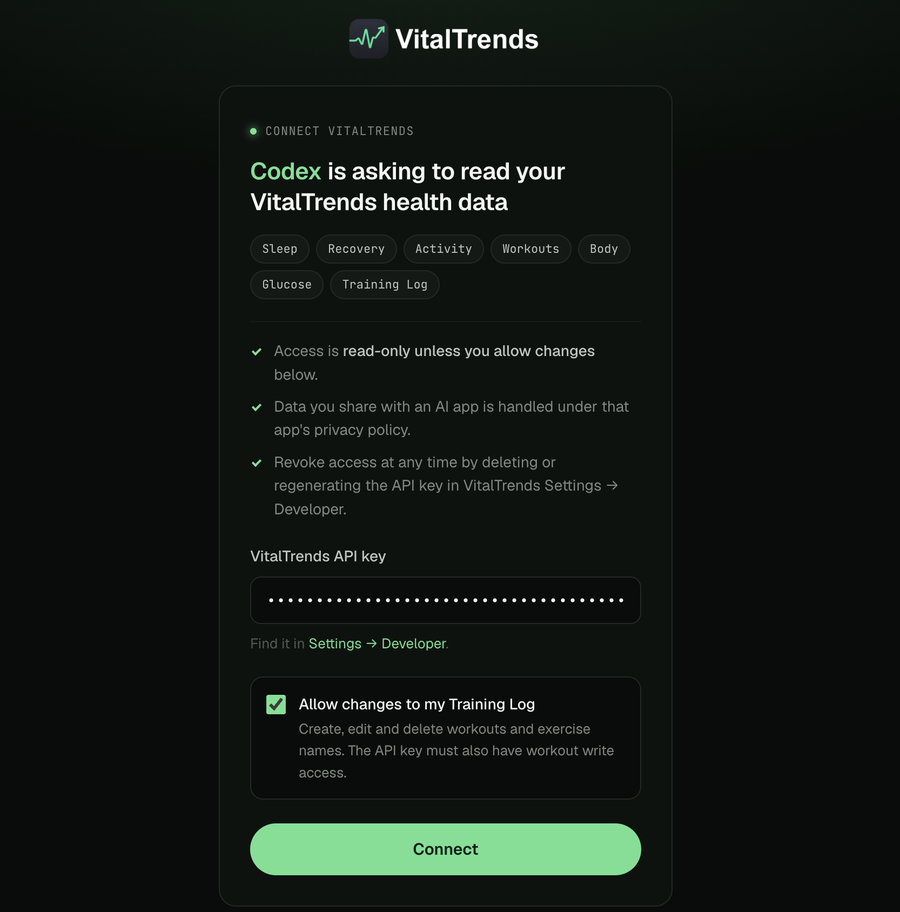
On the Connect VitalTrends page, paste your API key. Leave Allow changes to my Training Log unticked for read-only access, or tick it if you want Codex to create and edit workouts. Select Connect, then return to Codex.
Switch to Codex in the desktop app and start a new local conversation on the computer where you added the server. If WHOOP is synced, ask the sleep question below.
Verify with WHOOP sleep
This lookup only requires read access. In a verified run, Codex returned the latest seven sessions, including a nap, with session times, sleep duration, performance, and efficiency. WHOOP naps can count toward the seven sessions. Ask for overnight sessions only if you want to exclude naps.
Example tasks
- "Pull my last 90 days of WHOOP recovery and HRV and chart them."
- "Compare my average resting heart rate this month with last month, using my Apple Health data."
- "Export my Withings weight readings for this year to a CSV file in this project."
- "List my strength workouts from the last 30 days and summarize volume by muscle group."
- "Find likely duplicate exercise names in my Training Log and show me which ones to merge."
For everything Codex can read and change, see the full tool reference.
Codex CLI and IDE extension
The Codex CLI and the IDE extension read MCP servers from ~/.codex/config.toml. OpenAI says the desktop app, CLI and IDE extension share this configuration on the same computer, so if you already added VitalTrends in the app it may already be listed. Run codex mcp list before adding it again.
Option 1: OAuth sign-in (recommended)
codex mcp add vitaltrends --url https://mcp.vitaltrends.net/mcp
codex mcp login vitaltrends
codex mcp login opens the Connect VitalTrends page in your browser. Paste your API key, leave Allow changes to my Training Log unticked for read-only access, and select Connect. On a machine without a browser, run codex mcp login vitaltrends --no-browser, open the printed URL on another device, and paste the full redirect URL back into the terminal.
Option 2: API key from an environment variable
export VITALTRENDS_API_KEY="your-vitaltrends-api-key"
codex mcp add vitaltrends --url https://mcp.vitaltrends.net/mcp --bearer-token-env-var VITALTRENDS_API_KEY
Codex sends the key as Authorization: Bearer .... The connection has the key's own permissions: read-only unless the key has Allow workout write access. Set the variable wherever Codex starts, for example in your shell profile, and keep it out of source control.
Or edit config.toml
[mcp_servers.vitaltrends]
url = "https://mcp.vitaltrends.net/mcp"
# Option 2 only: send your API key instead of using OAuth.
# bearer_token_env_var = "VITALTRENDS_API_KEY"
# Ask before any tool that is not marked read-only.
default_tools_approval_mode = "writes"
Use one option. A configured bearer token takes precedence over OAuth. With OAuth, run codex mcp login vitaltrends after saving the file.
Check the connection
In the Codex CLI, type /mcp to list connected servers and tools (/mcp verbose shows diagnostics, /mcp login vitaltrends signs in from the session). To sign out, run codex mcp logout vitaltrends; to remove the server, run codex mcp remove vitaltrends.
Example: analyze my training log
This only needs read access. Codex calls get_workout_logs with include="exercises" and writes the CSV and notebook in your project folder, not in VitalTrends. Charts and summaries are not medical or coaching advice.
Troubleshooting
VitalTrends tools are missing
In a new local Codex conversation, type /mcp in the composer and select the command from the menu to check that VitalTrends is connected. If the app asks for authentication, return to Settings → Plugins → MCPs and select Authenticate.
Using regular ChatGPT
The connection in this guide applies to Codex. ChatGPT chat requires a separate plugin connection where your workspace supports custom MCP servers. See the VitalTrends ChatGPT guide and OpenAI's ChatGPT plugin setup guide.
Nothing happens after selecting Connect
Codex receives the sign-in on your own computer. Keep Codex open during sign-in, select Authenticate again and complete the page within a few minutes.
Codex asks you to authenticate again
The API key behind the connection was deleted or regenerated. Select Authenticate and sign in with your current key.
Codex says the connection is read-only
Authenticate again and tick Allow changes to my Training Log. The API key also needs Allow workout write access turned on.
General connector problems (invalid key, missing data) are covered on the MCP Server page.