Connect VitalTrends to Grok
Use your synced WHOOP, Apple Health, Oura, Withings and Hevy data in Grok on the web through the hosted VitalTrends MCP server.
You'll need an active VitalTrends subscription, a synced data source and your personal API key from VitalTrends Settings → Developer.
https://mcp.vitaltrends.net/mcp, leave headers blank and paste your API key on the VitalTrends consent page. Verified on grok.com on 21 November 2026.
Setup
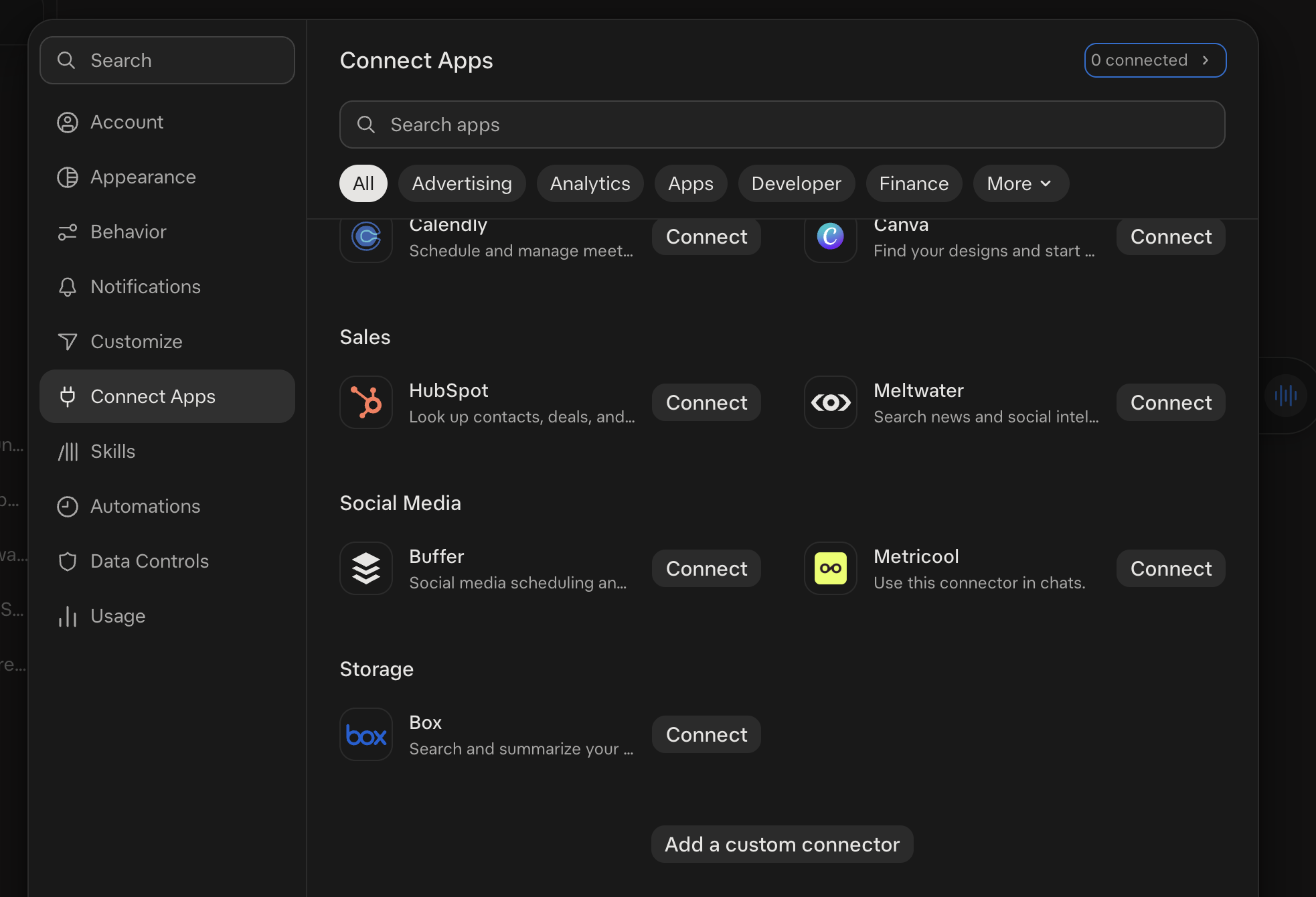
In Grok, open Settings → Connect Apps. Scroll to the bottom and select Add a custom connector.
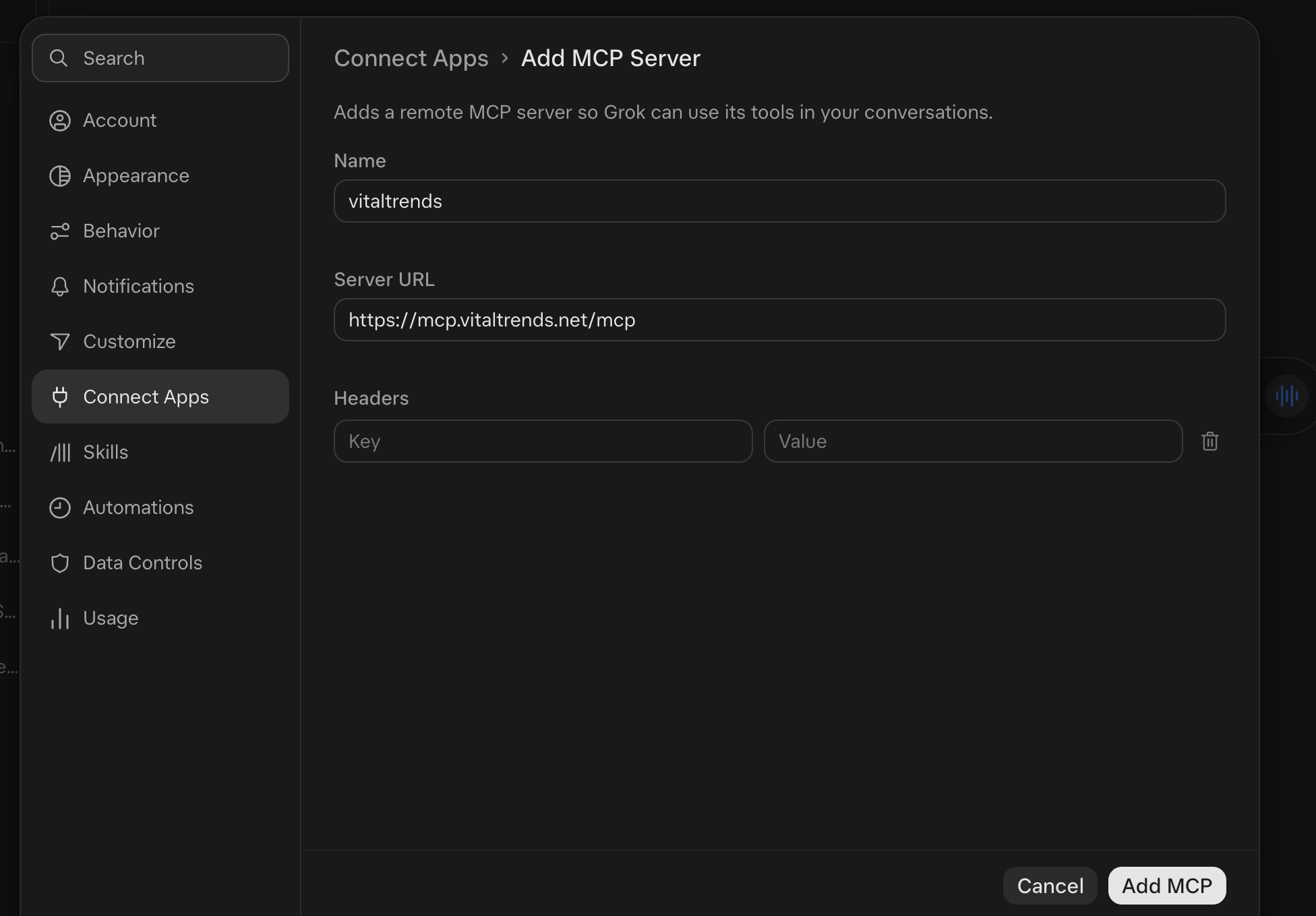
In Add MCP Server, enter VitalTrends as the name and https://mcp.vitaltrends.net/mcp as the server URL. Leave Headers blank and select Add MCP.
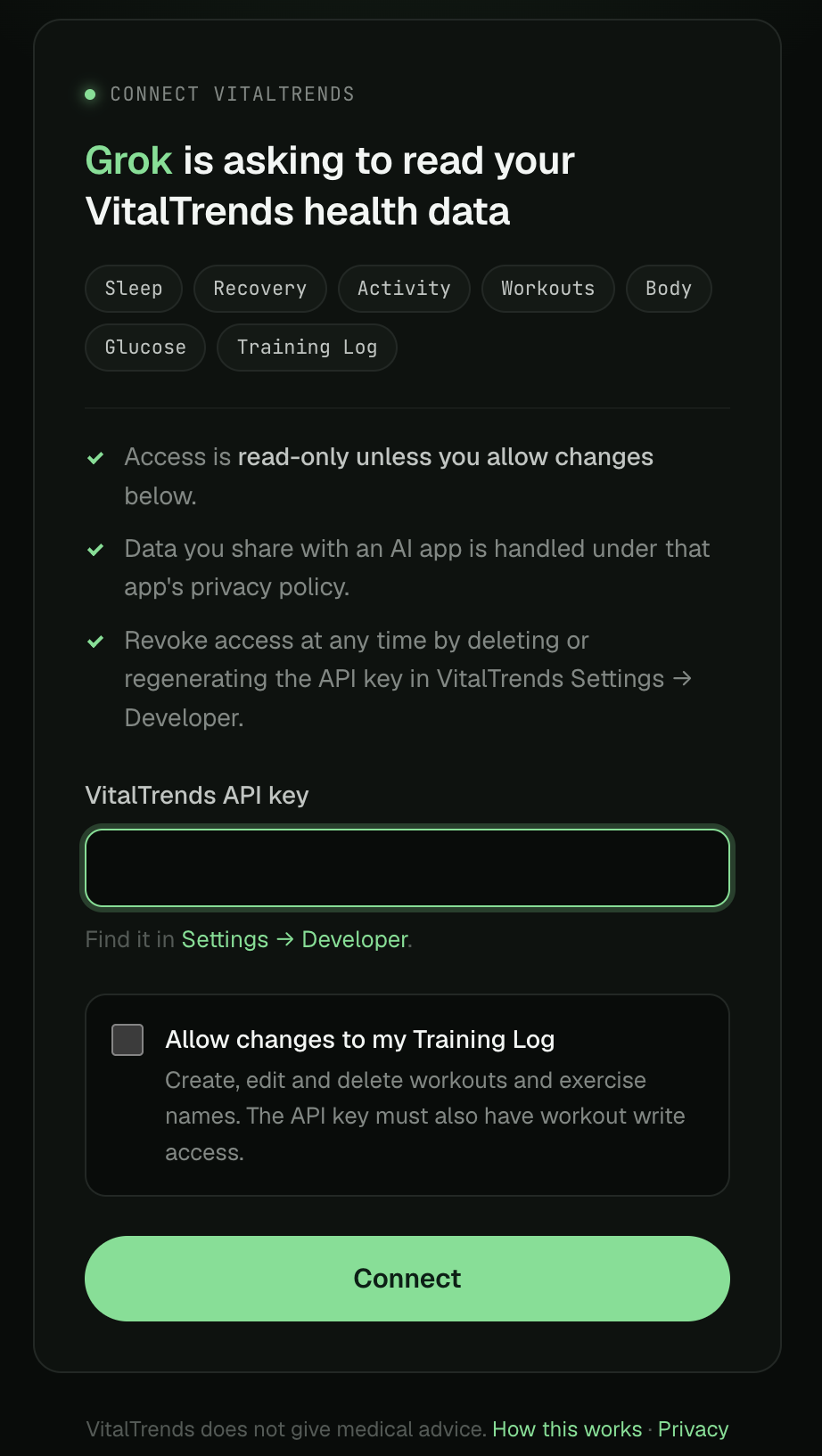
On the Connect VitalTrends page, paste your VitalTrends API key and select Connect. Leave Allow changes to my Training Log unchecked for read-only access.
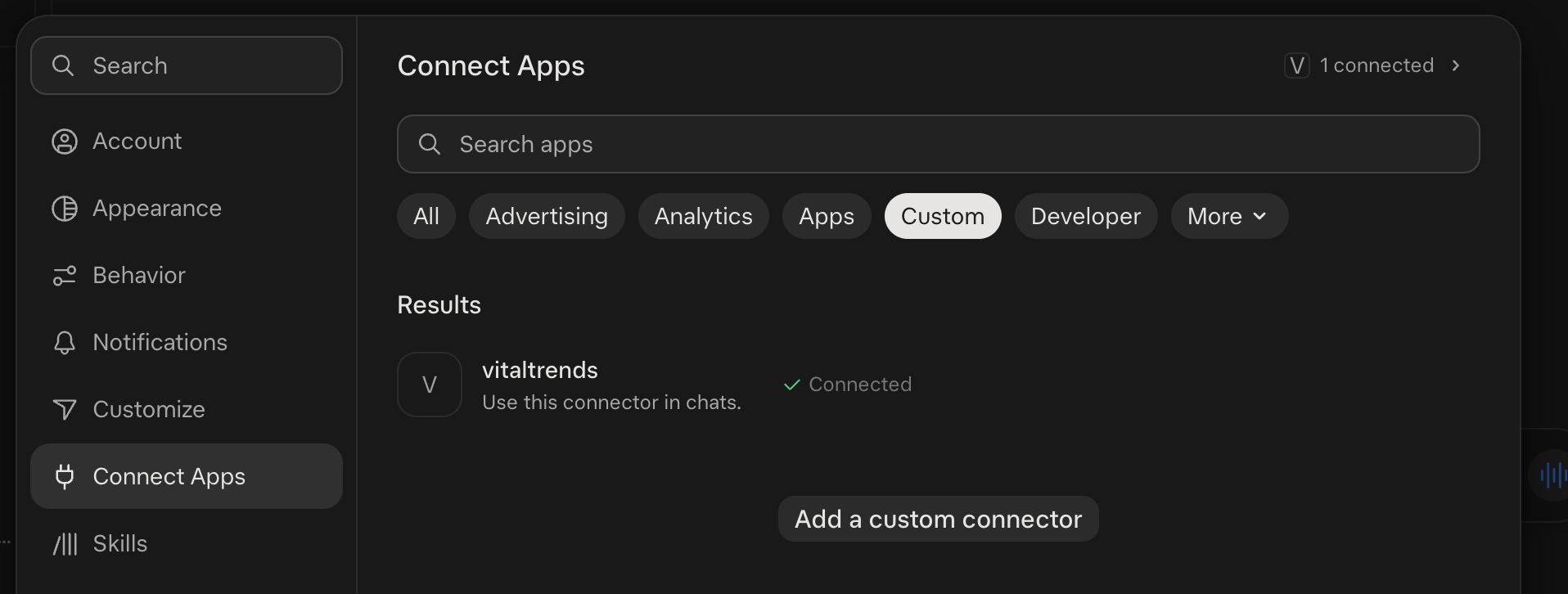
In Connect Apps → Custom, check that VitalTrends shows Connected. Open a new Grok chat and try the prompt below.
Grok Business and Enterprise: xAI's docs say a team admin must first provision a custom connector in the xAI console before members can use it. Ask your admin to add https://mcp.vitaltrends.net/mcp there. Not yet tested by VitalTrends.
Grok mobile apps: xAI says connectors are also available in the Grok iOS and Android apps, under Settings → Connectors. Not yet tested by VitalTrends. Sign in with the same Grok account and check whether VitalTrends is listed; if it isn't, add it on grok.com first.
First prompts to try
In a verified Grok run, the response summarized light, deep and REM sleep alongside sleep performance and efficiency.
- “Use VitalTrends to compare my average daily Apple Health steps this week and last week.”
- “Use VitalTrends to summarize my Withings weight trend over the last 30 days.”
- “Use VitalTrends to show my Oura readiness scores for the last 14 days and point out the three lowest days.”
- “Use VitalTrends to list my Training Log workouts from the last 4 weeks and show which muscle groups got the most volume.”
Starting with “Use VitalTrends” helps Grok pick the connector. Ask for a date range: shorter ranges are faster. Grok's answers are summaries of your data, not medical advice. More ideas are in the prompt library.
See the MCP tool reference for supported data and troubleshooting.
Automate a daily brief with Grok
@, but it doesn't say whether that includes custom MCP connectors such as VitalTrends. Run the automation once manually and check the result before you rely on it.
Grok Automations run a saved instruction on a schedule (once, daily, weekdays, weekly, monthly or yearly, in your time zone) and can send the result by email, app notification, both or neither. xAI says scheduled automations are available to everyone, on grok.com/automations and in the Grok iOS and Android apps. You can also ask Grok in a chat to create one.
Open grok.com/automations and create a new automation. Set the schedule to Daily at a time after your wearable usually syncs, for example 07:30.
In the instruction, type @ and choose the VitalTrends connector where the prompt says so. Then paste the rest:
(mention VitalTrends here) Write my morning readiness brief.

1. Get my WHOOP daily data for the last 14 days. If I don't use WHOOP,
   use my Oura daily readiness and daily sleep for the last 14 days.
2. Get my workouts from the last 7 days.
3. Report, in under 150 words:
   - last night's sleep duration and sleep performance or score
   - today's recovery or readiness
   - HRV and resting heart rate compared with my 14-day average
   - yesterday's training
4. If today's data hasn't synced yet, say so instead of guessing.

Only read data. Don't create, change or delete anything.
Don't diagnose or give medical advice.Pick email, app notification or both. Run the automation once and open its run history to confirm it called VitalTrends and didn't fall back to guessing.
Keep the connection read-only for automations: leave Allow changes to my Training Log unticked when you connect. Automations run without you watching, and emails and notifications can show your health data on a lock screen or in a shared inbox. For more scheduling options (n8n, Zapier, Apple Shortcuts, scripts), see Automations.
Use VitalTrends from the xAI API
If you build your own scripts or apps on the xAI API, you can give Grok the VitalTrends server as a remote MCP tool. xAI connects to https://mcp.vitaltrends.net/mcp from its servers and calls the tools for you. This works in xAI's native SDK, the OpenAI-compatible Responses API (https://api.x.ai/v1/responses) and xAI's speech-to-speech API.
The API doesn't use the consent page. Send your VitalTrends API key as an Authorization: Bearer header on the MCP tool. The key's own permissions apply, so use a key without workout write access for read-only use.
| Field | Value for VitalTrends |
|---|---|
type | mcp |
server_url | https://mcp.vitaltrends.net/mcp (the /sse endpoint also works; xAI supports Streaming HTTP and SSE) |
server_label | vitaltrends (required; used to prefix tool calls) |
headers (extra_headers in the xAI SDK) | {"Authorization": "Bearer <VITALTRENDS_API_KEY>"} |
allowed_tools (allowed_tool_names in the xAI SDK) | Optional. The read tools you need, for example get_whoop_daily, get_oura_daily_readiness, get_summary |
Python (xai-sdk)
# pip install xai-sdk
import os

from xai_sdk import Client
from xai_sdk.chat import user
from xai_sdk.tools import mcp

client = Client(api_key=os.environ["XAI_API_KEY"])

chat = client.chat.create(
    model="grok-4.7",
    tools=[
        mcp(
            server_url="https://mcp.vitaltrends.net/mcp",
            server_label="vitaltrends",
            server_description="The user's synced WHOOP, Oura, Apple Health and training data",
            extra_headers={
                "Authorization": f"Bearer {os.environ['VITALTRENDS_API_KEY']}",
            },
            allowed_tool_names=[
                "get_whoop_daily",
                "get_oura_daily_readiness",
                "get_summary",
            ],
        ),
    ],
)

chat.append(user("Summarize my sleep and recovery for the last 7 days."))
response = chat.sample()
print(response.content)
curl (Responses API)
curl https://api.x.ai/v1/responses \
  -H "Content-Type: application/json" \
  -H "Authorization: Bearer $XAI_API_KEY" \
  -d '{
  "model": "grok-4.7",
  "input": [
    {
      "role": "user",
      "content": "Use VitalTrends to summarize my sleep and recovery for the last 7 days."
    }
  ],
  "tools": [
    {
      "type": "mcp",
      "server_url": "https://mcp.vitaltrends.net/mcp",
      "server_label": "vitaltrends",
      "headers": { "Authorization": "Bearer '"$VITALTRENDS_API_KEY"'" },
      "allowed_tools": ["get_whoop_daily", "get_oura_daily_readiness", "get_summary"]
    }
  ]
}'
Two API keys are involved: XAI_API_KEY authenticates you to xAI, and VITALTRENDS_API_KEY is passed on to VitalTrends. Replace grok-4.7 with any current Grok model that supports tools. The OpenAI Python SDK works the same way: set base_url="https://api.x.ai/v1" and pass the same tools entry to client.responses.create.
Limits
- Verified surface: Grok on the web (grok.com). The mobile apps, Automations and the xAI API are documented from xAI's docs and not yet tested by VitalTrends.
- Data: Grok can read synced WHOOP, Oura, Withings, Apple Health, glucose, Hevy and Training Log data. Lab reports, weekly recaps, provider connections, billing and account settings aren't available through MCP.
- Write access: only for your Training Log, and only when you allow it on the consent page and on the API key.
- No approval step on the xAI API: xAI doesn't support
require_approval, so Grok calls tools without asking. Use a read-only key, or limitallowed_toolsto read tools. - Context size: without
allowed_tools, all 44 VitalTrends tool definitions are added to the model's context. Narrow the list and the date range for faster, cheaper calls. - Privacy: data Grok reads is handled under xAI's privacy policy. See AI access and your data.
Troubleshooting
Grok answers without using VitalTrends
Start the prompt with “Use VitalTrends to…”. Check that the connector shows Connected in Settings → Connect Apps → Custom, then start a new chat.
The consent page says the key is invalid
Copy the complete key without spaces, or regenerate it in Settings → Developer.
Grok finds no data
Confirm a source is connected and synced in Settings → Connections, and that the API key belongs to the same VitalTrends account.
Grok says it can't change a workout
The connection is read-only. Remove the connector in Grok, add it again and tick Allow changes to my Training Log. The API key also needs Allow workout write access. Ask Grok to preview any change before it saves.
The automation ran but has no VitalTrends data
Open the run history. Check that the instruction mentions the VitalTrends connector with @. If Grok still doesn't call it, custom connectors may not be available in automations yet; use one of the options in Automations instead.
The xAI API returns an MCP or 401 error
VitalTrends expects the header value to be exactly Bearer <your key>. Check that VITALTRENDS_API_KEY is set in the shell or process that makes the request. The examples use headers rather than xAI's authorization field because xAI's docs don't say whether that field adds the Bearer prefix.
Slow responses or results that are too large
Narrow the date range in your prompt, for example “last 30 days” instead of “all time”.
General connector problems are covered on the MCP Server page. xAI references: Grok connectors, Grok Automations, Remote MCP Tools.
FAQ
Does Grok see my VitalTrends API key?
Not when you add the connector on grok.com. You paste the key on the VitalTrends consent page, and Grok only receives a token tied to it. With the xAI API, you send the key yourself in the request headers, so xAI receives it with each request.
Can Grok change my data?
Not by default. The connection is read-only unless you tick "Allow changes to my Training Log" on the consent page and your API key has workout write access. Even then, Grok can only change your Training Log, not your WHOOP, Oura, Withings, Apple Health or Hevy data.
Does it work in the Grok mobile apps?
xAI says connectors are available in the Grok iOS and Android apps under Settings, Connectors. VitalTrends has verified the connector on grok.com only.
Does it work with Grok inside X?
xAI lists connectors for Grok on the web, iOS and Android. It does not list Grok inside the X app, so use grok.com or the Grok app.
Can Grok read my lab results or weekly recaps?
No. Lab reports, weekly recaps and account settings stay in the VitalTrends website. The MCP server covers synced wearable, Apple Health, glucose and training data.
How do I disconnect Grok?
Remove the VitalTrends connector in Grok. To cut off access everywhere at once, delete or regenerate your API key in VitalTrends Settings, Developer. Every AI connection made with that key stops working immediately.
Is Grok giving me medical advice?
No. Grok summarizes the data VitalTrends sends it. Neither Grok nor VitalTrends gives medical advice. Talk to a clinician about health decisions.