- What you need
- Connecting Grok, in short
- What Grok can see about your sleep
- Prompts for your sleep stages
- Sleep staging is an estimate
- A daily sleep brief
- Privacy, in one paragraph
- FAQ
- Does Grok support custom MCP connectors?
- Does this work in the Grok app or on X?
- Can I see other data in Grok, not just WHOOP?
- Why did Grok answer without calling VitalTrends?
- Why does Grok say it can't find last night's sleep?
- Can Grok change my WHOOP data?
- Read next
TL;DR: On grok.com, open Settings → Connect Apps → Add a custom connector, name it VitalTrends and use the URL https://mcp.vitaltrends.net/mcp. Paste your VitalTrends API key on the sign-in page and Grok can read your WHOOP sleep sessions, including light, deep and REM time. We tested this end to end on Grok for the web. The step-by-step guide with screenshots is at /docs/mcp-grok.
There's very little written about Grok and health data, which is odd, because Grok was one of the easiest assistants to set up. The first real question I asked it was about my WHOOP sleep stages, and it pulled 30 nights, skipped the naps and gave me a clean breakdown. This post is that workflow, plus the prompts I keep coming back to.
What you need
- A WHOOP account connected to VitalTrends and synced. See the WHOOP guide if you haven't connected it yet.
- An active VitalTrends subscription and your API key from Settings → Developer.
- A Grok account on grok.com.
Connecting Grok, in short
The full steps live in the Grok guide, because menus change and I'd rather fix them in one place. The short version:
- In Grok, go to Settings → Connect Apps, scroll down and choose Add a custom connector.
- Enter VitalTrends as the name and
https://mcp.vitaltrends.net/mcpas the server URL. Leave the headers blank. - A Connect VitalTrends page opens. Paste your API key and select Connect. Leave "Allow changes to my Training Log" unchecked if you only want Grok to read.
- Back in Connect Apps, VitalTrends should show as Connected. Open a new chat.
Grok never sees your API key. It gets a token tied to it, and that token renews itself. If you delete or regenerate the key in VitalTrends, Grok's access stops immediately.
What we've tested: Grok on grok.com in a web browser. We haven't yet verified the Grok mobile apps or Grok inside X, so I won't claim they work. The Grok guide will say when that changes.
What Grok can see about your sleep
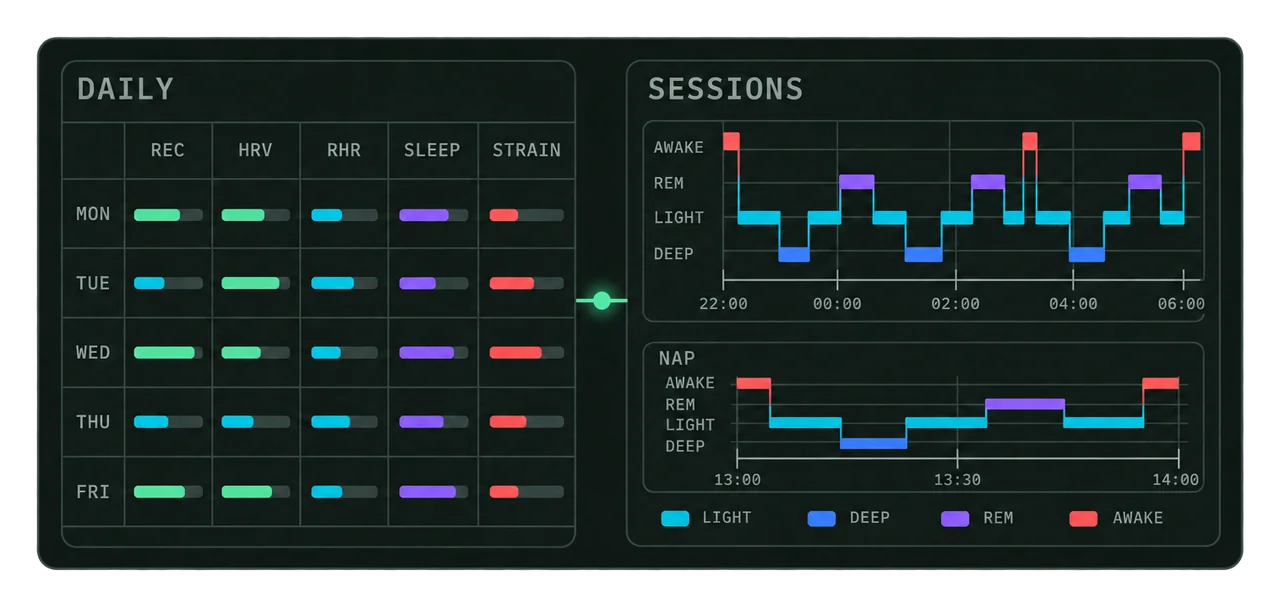
The connector gives Grok two useful views of WHOOP sleep:
- Daily data (
get_whoop_daily): recovery, HRV, resting heart rate, sleep performance, sleep duration and strain, one row per day. - Sleep sessions (
get_whoop_sleep): each sleep with its stages (light, deep, REM, awake), score, duration and performance metrics. Naps appear as separate sessions, so you can include or exclude them.
Grok picks the tool itself. You just ask in plain language.
Prompts for your sleep stages
Start with "Use VitalTrends" so Grok knows to call the connector.
- "Use VitalTrends to analyze my WHOOP sleep stages over the last 30 days, excluding naps. Give average light, deep and REM time and how each compares with the previous 30 days."
- "Which nights in the last 30 days had the least deep sleep? What were my strain and workout times the day before each one?"
- "Show my REM sleep as a share of total sleep for each of the last 14 nights. Flag any night that's well below my usual range."
- "Compare my sleep stages on nights after a workout that ended after 8 pm with nights after earlier workouts, over the last 60 days."
- "How consistent is my sleep? Use my WHOOP sleep sessions from the last 4 weeks to tell me how much my sleep start time varies, and whether later nights have less deep sleep."
- "Use VitalTrends to compare weekday and weekend nights over the last 8 weeks: total sleep, deep sleep, REM and sleep performance."
- "Is there a relationship between my awake time during the night and my next-morning recovery over the last 60 days? Tell me if the pattern is weak."
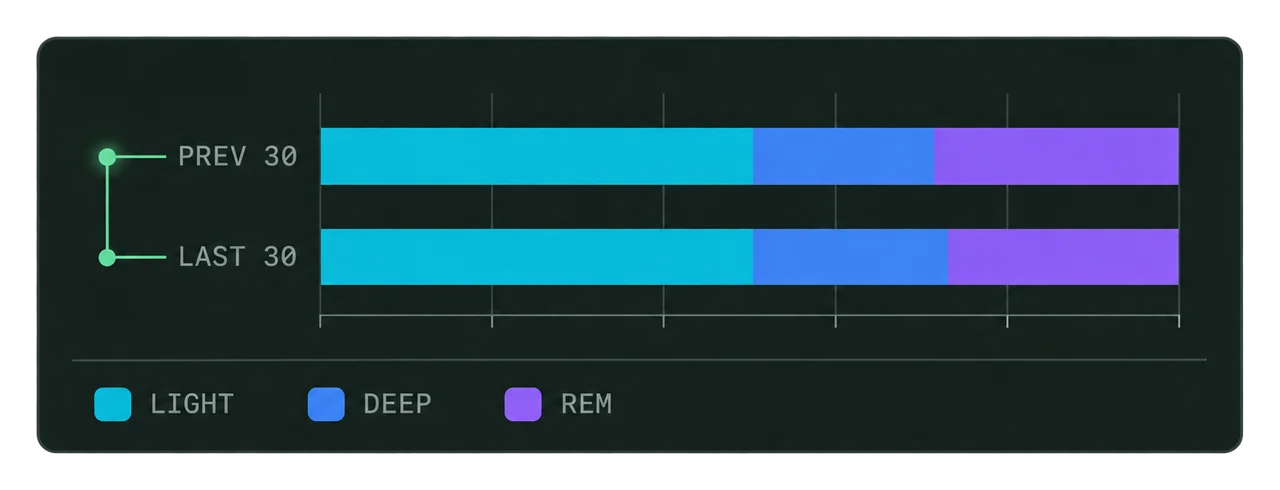
Here's what prompt 1 looks like. The numbers are invented for this post.
Sample output (synthetic data): Over the last 30 nights (naps excluded) you averaged 7 h 04 m asleep. Light sleep was 3 h 41 m (52%), deep sleep 1 h 33 m (22%) and REM 1 h 50 m (26%), with about 38 m awake in bed. Compared with the previous 30 nights, deep sleep is up 9 minutes and REM is down 6 minutes. Sleep performance averaged 86%, and sleep efficiency held near 92%. The changes are small relative to your night-to-night spread.
And prompt 4:
Sample output (synthetic data): In the last 60 days you had 11 workouts that ended after 8 pm and 23 that ended earlier. After late workouts you averaged 1 h 21 m of deep sleep versus 1 h 36 m after earlier ones, and your sleep start was 41 minutes later on average. REM was similar. Eleven nights is a small sample, so treat this as a pattern worth watching, not a rule.
That last sentence matters. A good prompt asks the AI to say when the data is thin. You can add "tell me how confident you are and why" to any of these.
Sleep staging is an estimate
WHOOP, like every wrist or finger wearable, estimates sleep stages from signals such as heart rate, heart rate variability and movement. It doesn't measure brain activity the way a lab sleep study does. That makes it useful for trends in your own data over weeks, and much less useful for judging one night in isolation.
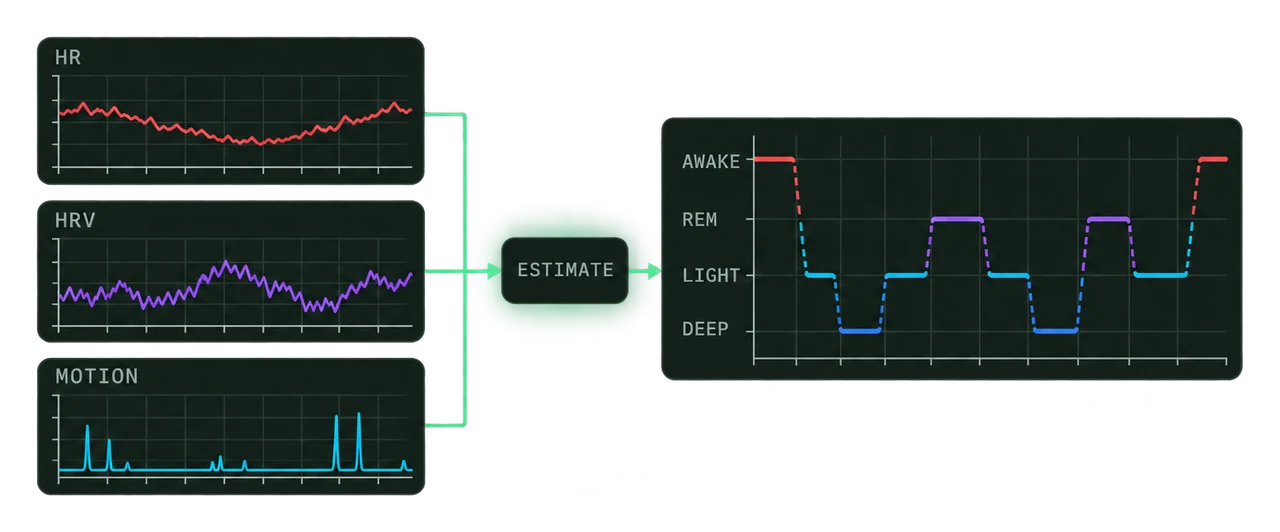
So the best questions are relative: this month versus last month, late workouts versus early ones, weekdays versus weekends. Avoid reading a single night with low deep sleep as a problem.
A daily sleep brief
Once the prompts work in chat, you can try running one on a schedule. Grok has Automations at grok.com/automations, which run a saved prompt on a schedule and send you the result. Grok's launch notes say automations can use connectors, but we haven't yet confirmed that a custom connector such as VitalTrends runs inside an automation. Test it with one run before you rely on it, and check the automations guide for our latest status.
A prompt that suits a morning brief:
Use VitalTrends. Look at last night's WHOOP sleep (not naps).
If last night isn't synced yet, say so and stop.
Otherwise give me, in under 70 words:
- Total sleep and sleep performance
- Deep and REM time versus my 30-day average
- One plain suggestion for tonight, if anything stands out
No medical advice.
Schedule it for about an hour after you usually wake, so WHOOP has processed the night and VitalTrends has synced it. If Grok's automations don't fit your setup, the same prompt works in other schedulers covered in the automations guide.
Privacy, in one paragraph
The connection is read-only unless you allow Training Log changes in two places. When Grok reads your sleep data, that data is handled under xAI's privacy policy, not VitalTrends'. Read AI access and your data for what to check, and how to cut off access.
FAQ
Does Grok support custom MCP connectors?
On grok.com, yes. We added VitalTrends as a custom connector and ran a real tool call on 21 November 2026. The Grok guide has the current steps and screenshots.
Does this work in the Grok app or on X?
We haven't verified the mobile apps or Grok inside X yet. Use grok.com in a browser for now.
Can I see other data in Grok, not just WHOOP?
Yes. The same connector covers Oura, Withings, Apple Health, Hevy, glucose and your Training Log, as long as those sources are synced in VitalTrends. Try "Use VitalTrends to compare my average daily Apple Health steps this week and last week."
Why did Grok answer without calling VitalTrends?
Start the prompt with "Use VitalTrends", and check the connector shows as Connected. If it still doesn't call the tool, open a new chat.
Why does Grok say it can't find last night's sleep?
WHOOP may not have finished processing the night, or the sync hasn't run yet. Wait a little, or check the WHOOP page in VitalTrends.
Can Grok change my WHOOP data?
No. Nothing in WHOOP can be changed through VitalTrends. The only writable data is your VitalTrends Training Log, and only if you turned that on.
Read next
- Your health data, inside any AI: every AI app we support and how they compare.
- Prompt library: more sleep, recovery and training prompts.
- MCP tool reference: every tool the connector exposes.